Using the steps below you can schedule your Hearth Display's sleep hours to align with your daily routine!
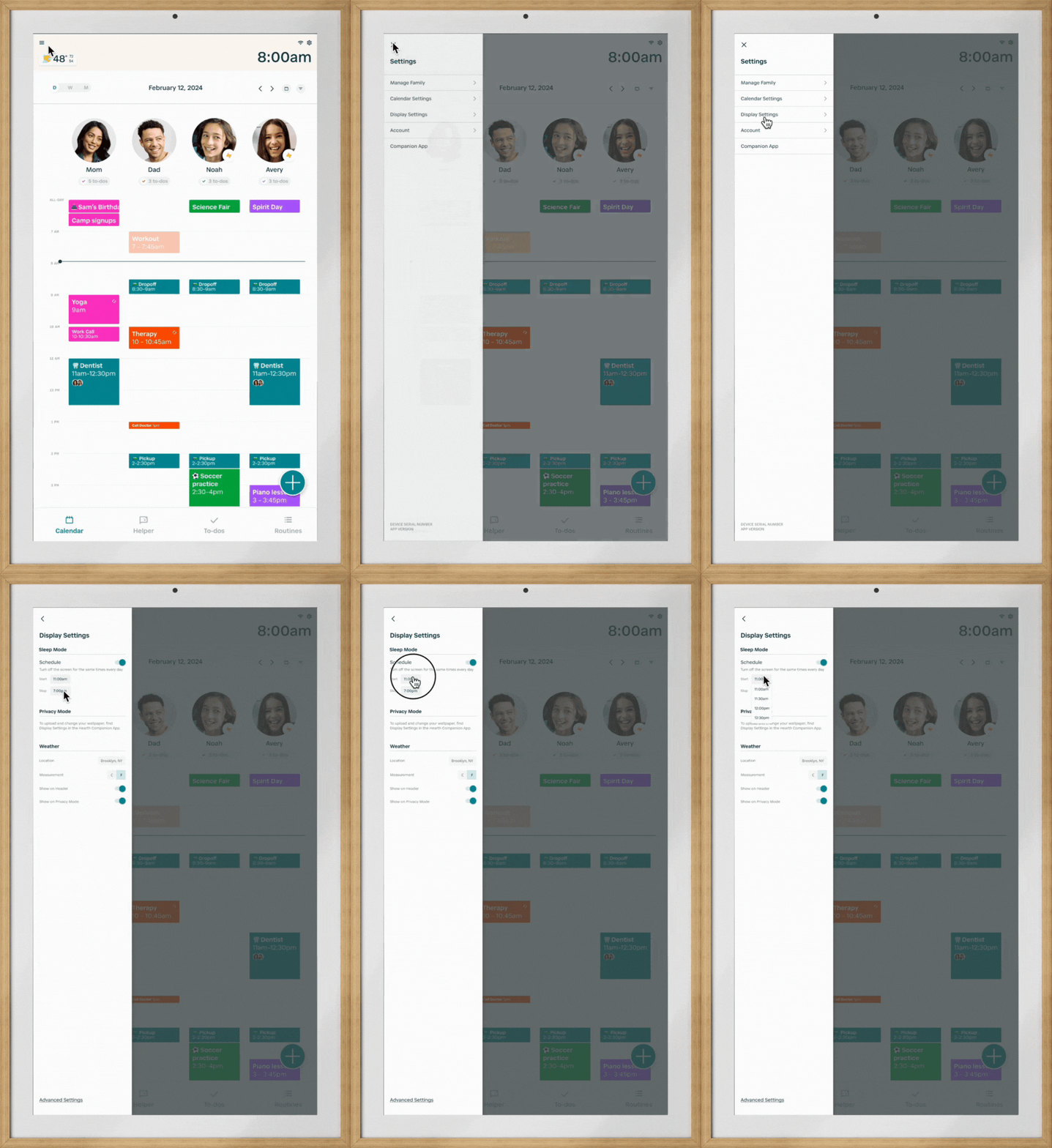
- On your Hearth Display, tap on the menu bar on the top left-hand side of the screen.
- Select the “Display Settings” tab
- Toggle on Sleep Mode to schedule your Hearth Display’s sleep times.
- Set your desired Start and End times for your Hearth Display to sleep.
Your Display will sleep every day at the set "Start" time, and turn back on during the scheduled "End" window.
Q: What if I want to turn my screen off during the day?
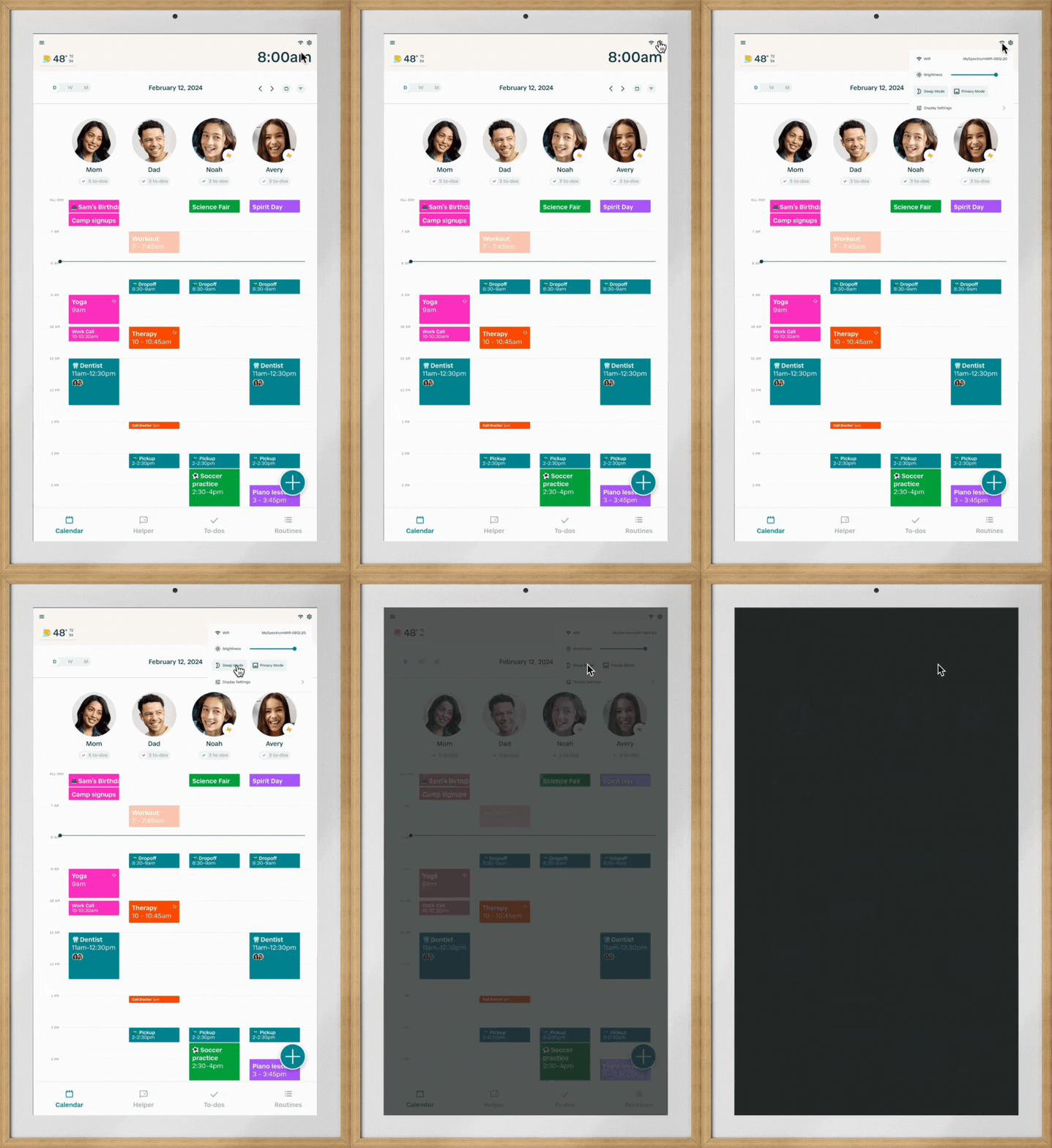
You can always turn the screen off by tapping the top right settings icon to open the Quick Settings, then tapping the "Sleep Mode" button. Alternatively, you can also use the power button accessible from the lower right back portion of the Display - this should be accessible by feel, without needing to remove the Display from the wall.
Q: How do I wake my Hearth Display up?
Simply tap to wake your screen! If you’re having issues waking your screen, please contact us HERE.
Q: How do Sleep Mode and Privacy Mode work together?
Only one mode can be active at one time. Sleep Mode is scheduled for the same duration every day, while you can turn on Privacy Mode at any point. It is important to note that Sleep Mode will override privacy mode at the designated sleep time.
If you are noticing that Sleep Mode is not supported, please make sure your Hearth Display is connected to wifi and plugged in in order to download a system update overnight that should resolve this issue.