What you’ll need to get started with Hearth:
- A strong Wi-Fi connection
- A mobile phone
- Your Display
In this article:
Some things to know before you set up your Display:
Setting Up Your Family Membership
You will need to set up a Family Membership prior to onboarding to the Hearth system, or as the first step of Onboarding. This membership includes a free trial, which you can cancel at any point after onboarding.
You can set up your membership at this page.
Once you purchase your membership, you will receive an activation code to your purchase email that can be used to activate your membership during your Hearth setup. You only need this code if you choose to onboard to the Hearth system using an email other than the one used to set up your Membership.
If you cannot find your code, please reach out to us using this contact form.
Hearth Family:
To successfully create your Hearth Family, you will need both the Display and a mobile phone - the link between your Display and your account is established during the Hearth Family creation process. We recommend that you create your Hearth Family with the primary email you plan to use to manage your relationship with Hearth - we’ll use this email to communicate new features, family membership updates, and it is how you’ll log into the Hearth system/activate your Display.
This primary email will be used for the first family member’s profile, so it should be specific to a person. If you intend to have a family profile as part of your Hearth Family (in addition to individual profiles), you can use a shared family email address. We recommend using a personal email rather than a work email to create your profiles, so that you can ensure continued access.
Profiles:
Choosing the correct profile for each of your family members' needs will allow you to start your Hearth journey smoothly. We currently have three types of profiles:
- Adult profile - ideal for any family member that should have adult controls over the Hearth Family. They will be able to create an account and log in to the companion app.
- Kid profile with email - the best kid profile type if you’d like your child to have access to the application on a mobile device and connect their own calendar.
- Kid Profile (no email) - an email is not required for a child profile. You can reassign calendars to any profile under Manage Family.
If you have kids, consider how you'd like them to participate in Hearth. This will help you select the right type of kids profile to get started. Please read this link carefully for additional information on each type of profile. While your initial Hearth profile is created when onboarding your Hearth Display, secondary profiles for other members of the family can be added later. Feel free to add your family’s profiles during the initial set-up, or, you can wait to add family members until you’ve seen how your own profile works first!
External Calendars:
While Hearth provides its own calendar system, we understand you may be using a digital calendar system already. We’ve created a general guide with best practices on setting up your Hearth Calendar, with specific links to more information depending on your calendar choice. You can also export the Hearth Calendar URL to subscribe to this calendar from any external calendar tool. Check out our Hearth 101 video walkthrough here.
Installation
Please follow our Installation Guide, to ensure you're mounting your Display correctly. We've also shared our installation instructions in video format. If you'd prefer to hide the cord, we recommend hiring a licensed professional, and following our Recessed Outlet Guide.
Setting up your Display
-
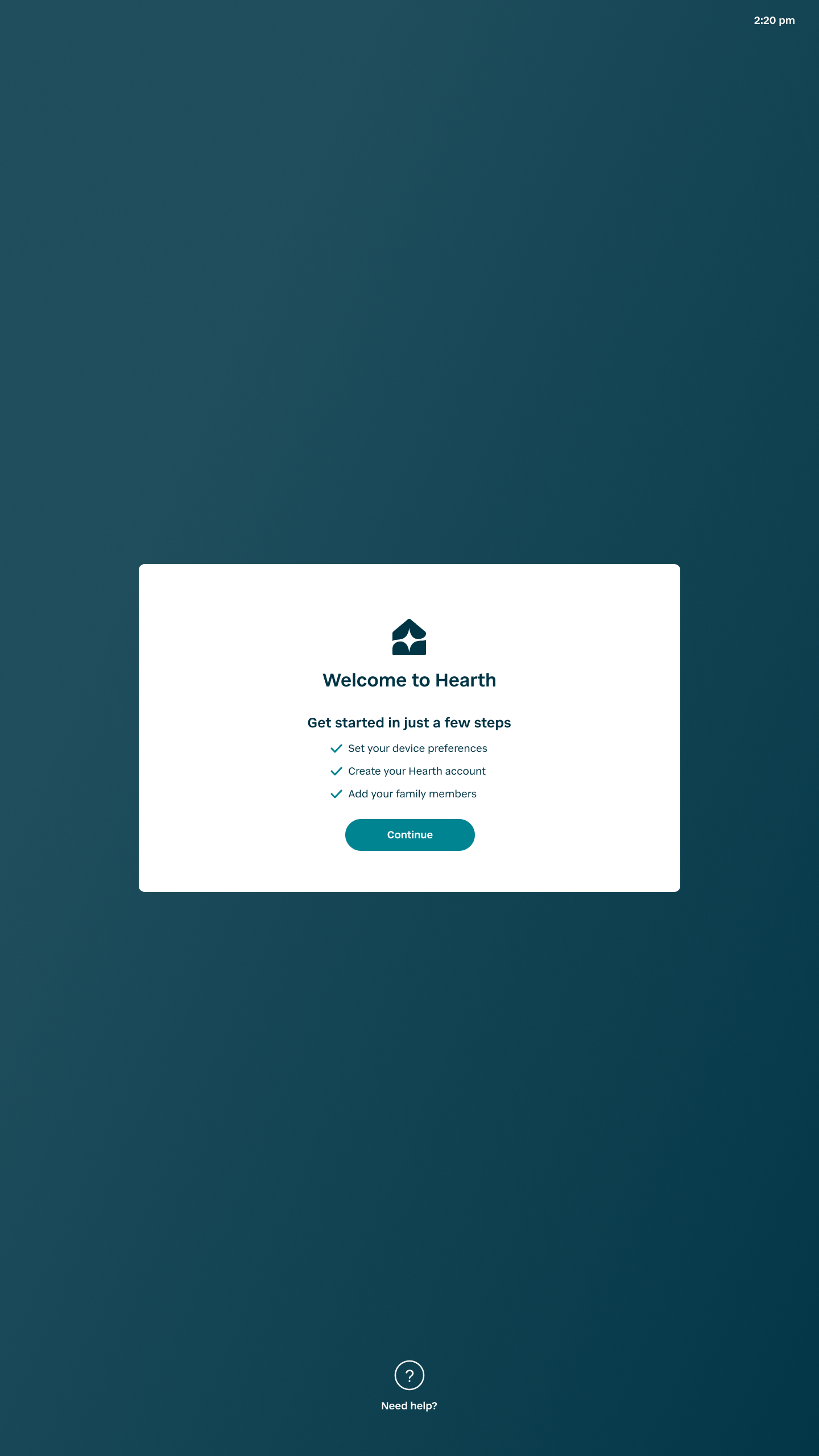
Plug in your Hearth Display. After a loading screen with Hearth branding, you’ll be taken to a welcome screen, to get started with Hearth.
-
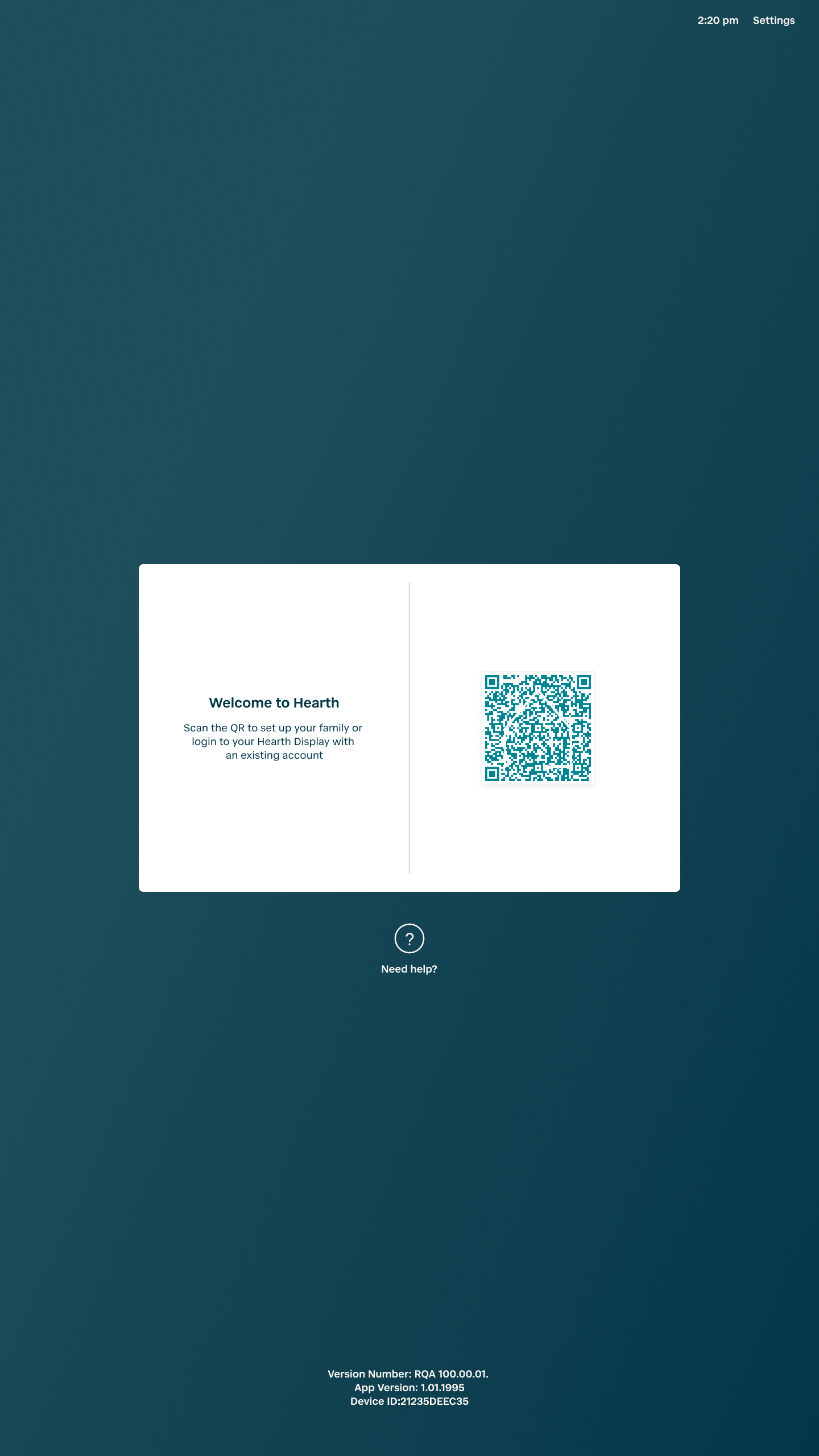
Following the steps on the Display, connect your Wi-Fi and choose your time zone. You’ll be able to adjust your timezone later through the advanced settings. Once you’ve successfully completed those steps, you’ll reach a screen that says ‘Welcome to Hearth’, with a QR code.
-
You’ll scan your QR code and bring up the associated web page, and follow the prompts on your phone to activate your Family Membership and set up your family. Onboarding must be completed in one go without pausing, so be sure you’re ready to complete this step without interruption - it shouldn’t take more than 5 minutes. Be sure to open any links you encounter during onboarding using your default web browser - you won’t be able to come back to certain pages if you lose them.
P.S. As mentioned before, you can skip the step of inviting your family members to your Hearth family during onboarding itself - you can do this once you’ve successfully created the Hearth Family.
-
Once you have activated your Family Membership, click continue with family set up.
-
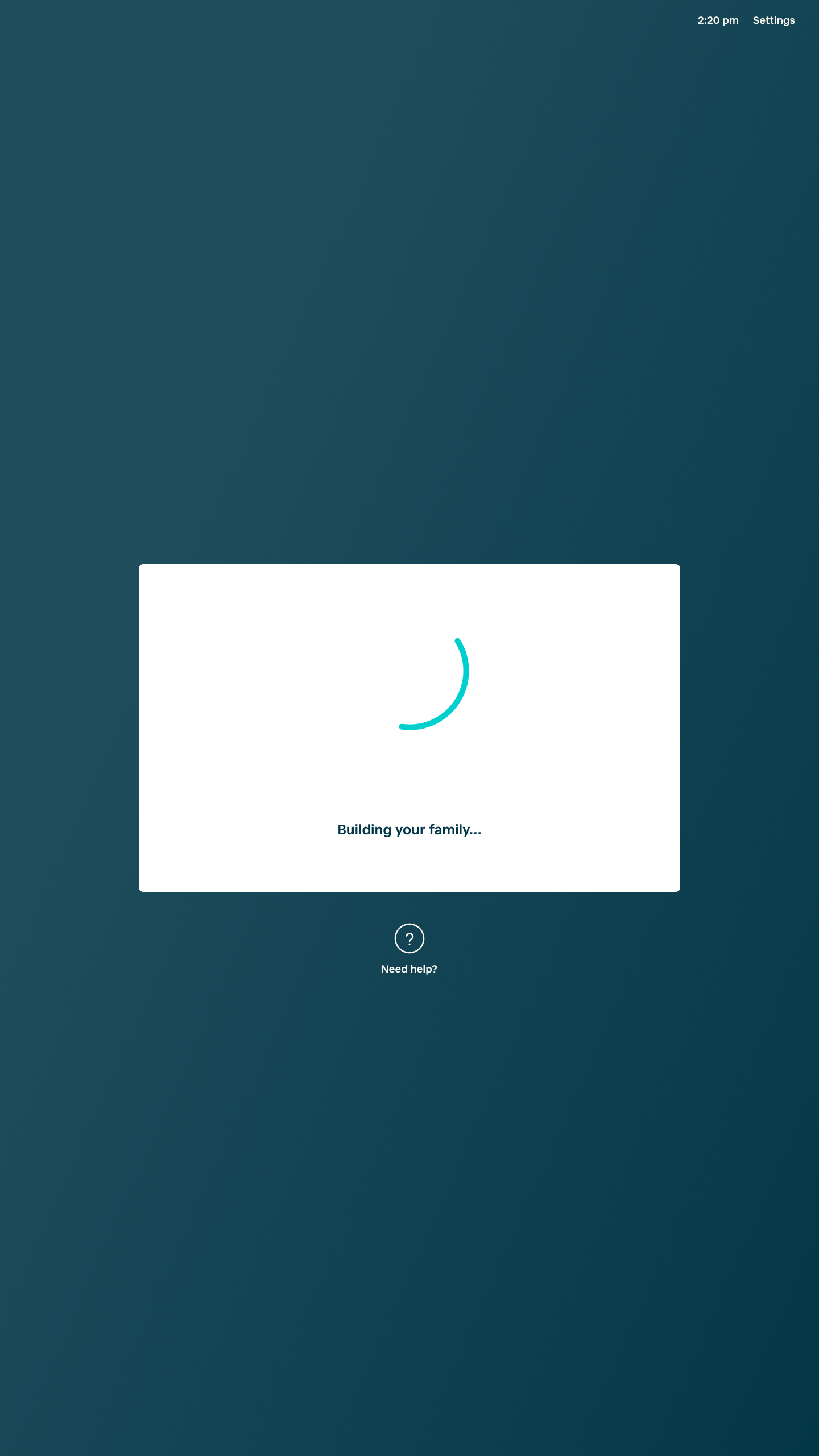
While you’re completing onboarding steps, your Display will transition from the QR code, to a screen with a spinning circle that says ‘Building your Family’.
-
After completing all the steps, you should notice two things:
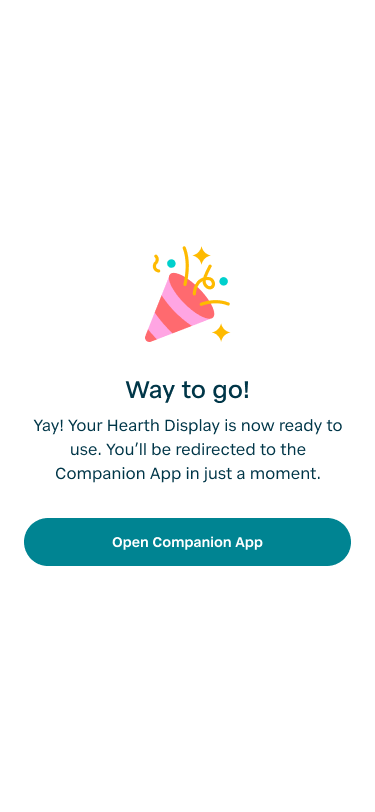
a. On your phone, you’ll see a screen with confetti, letting you know that you’ve completed all of the onboarding steps on your phone.
b. On your Display, the screen should transition from the ‘Building your Family’ page, to a blank Calendar view with a little welcome pop up. (don’t mind the fact that this calendar looks a little filled in - yours won’t until you add your events).
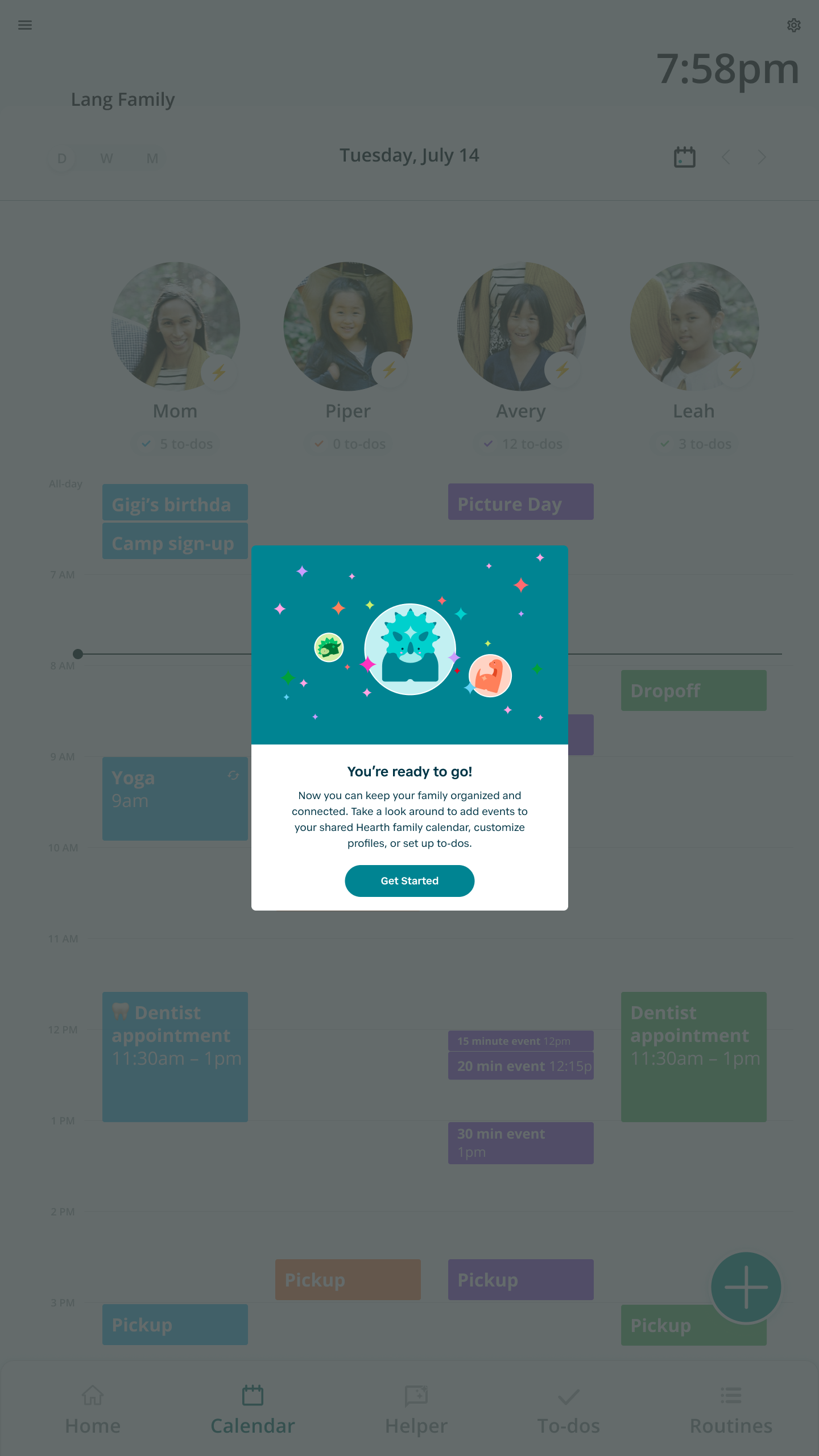
These two things must both happen for onboarding to be successful. If you’ve completed the onboarding steps, but don’t see one or both of these screens, please contact us using THIS FORM, and we can help troubleshoot! If you get interrupted during onboarding, reach out as well, and we can help you start over.
Get to Know our Features!
Now that you’ve set up your Hearth account, here are a few quick actions you can do to get the most out of your Hearth Display right away:
-
Follow the below instructions to access the Hearth Companion app and save it to your phone to access your Hearth Display on the go:
For iPhone users You can download the iOS application from the App Store here.
For Android users Find and download the Hearth Companion App for Android from the Google Play store here!
-
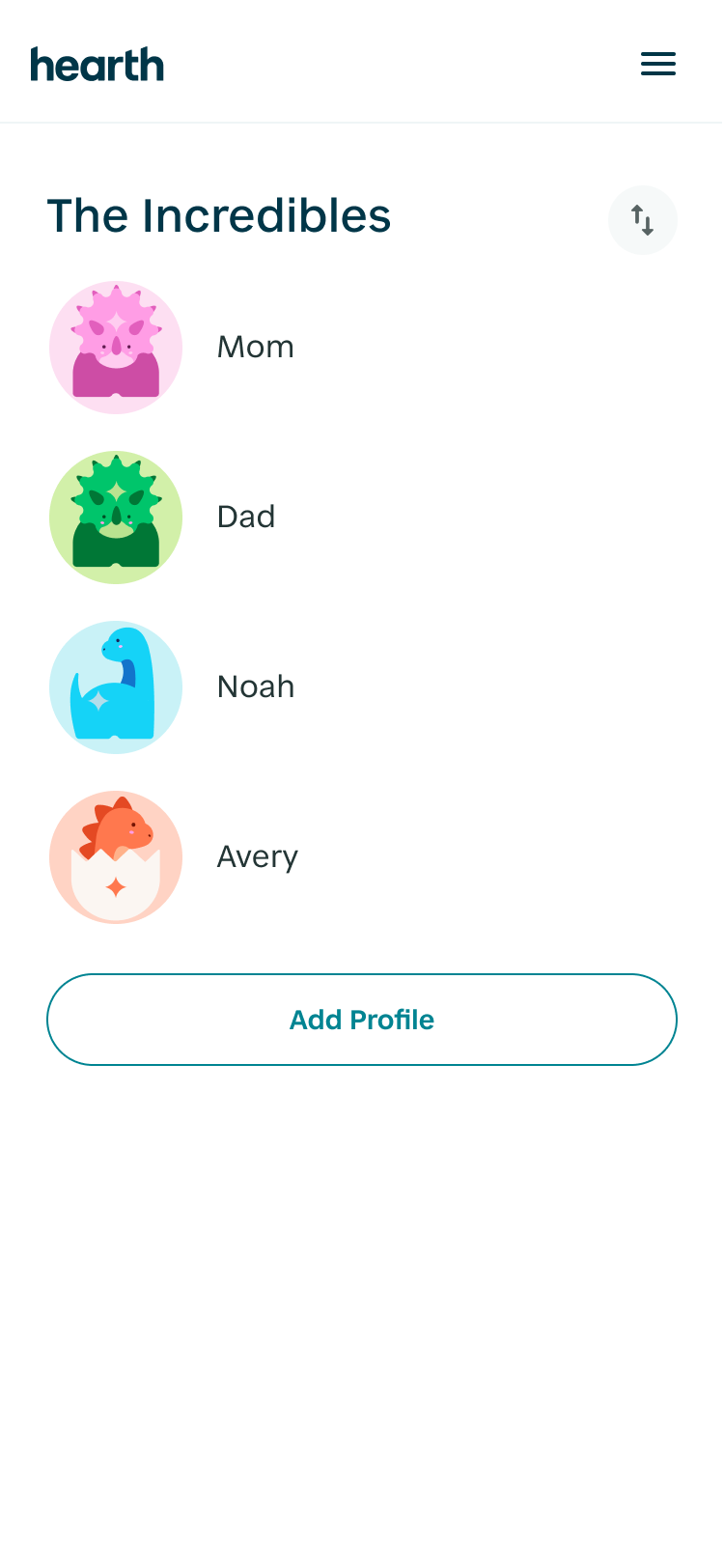
Add your family members If you haven’t done so already during onboarding, please add your family members to your Hearth Display. You can do this from the Hearth Companion app by tapping the top right menu icon and tapping “Manage Family”. If your family members plan to access the Hearth Companion app on their mobile device, make sure to invite them with their email address. You can change the avatars to profile images from Manage Family as well.
-
Connect any external calendars Sync your external calendars by selecting "Manage Calendars" in the Hearth Companion app, and following the steps for each calendar type you’d like to sync. You’ll be able to reassign any calendars you connect to the Hearth profile you’d like those events to show up for. Check out our Hearth 101 video walkthrough here.

-
Create your first event and assign it to your family Create your first event from either the Hearth Display or the Companion app and assign it to your family members- give it a try!
For users with a Google account, creating your first event on the Hearth Display will add a Hearth Calendar on your Google account so you can see all of your Hearth events. You can move or copy any individual Google event into this calendar for editing on the Hearth Display. Any edits you make on the Hearth Display or Companion app will reflect on your Google account.
Do you have all of your kids calendars under your account? You can reassign any subcalendar to a kid’s account. Learn more here.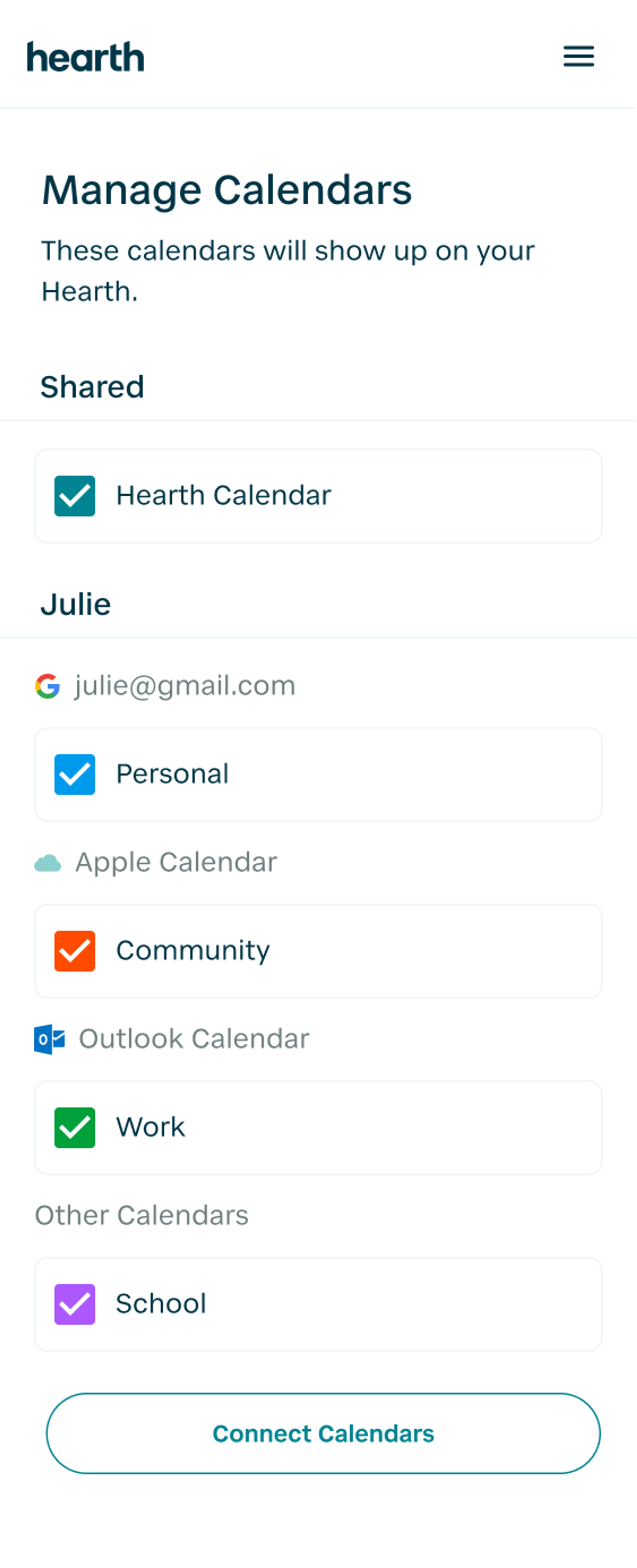
- Take the Guesswork Out of Mealtime Easily schedule meals for the week using the Hearth Display or the mobile Companion App -whether it’s a week full of quick dinners, themed favorites like "Taco Tuesday," or a cozy weekend breakfast. Customize each meal with colors, notes, and recipe links, and even assign special meals to specific family members. Once planned, meals appear right on the Hearth Display so everyone knows what’s coming up. Learn More.
- Check out your built-in To-dos and Groceries lists Check out your built-in To-dos and Groceries lists Your Hearth comes with built-in To-dos and Groceries lists for the whole family to see. In addition, you can create unlimited custom lists from the Companion App when you’re on the go and share the list with others. Learn more about lists here.
-
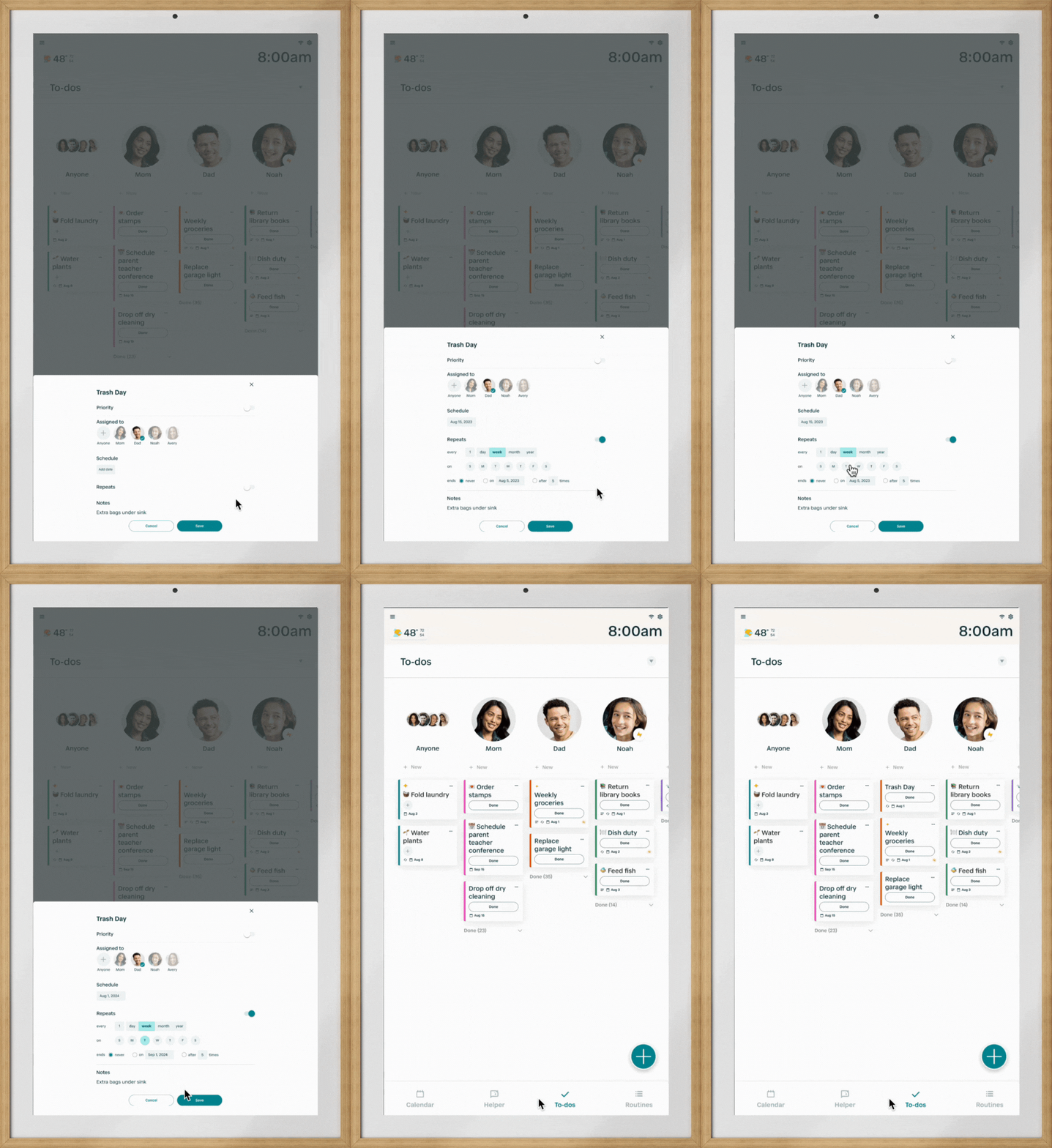
Add a few to-dos for your family On the family-wide To-dos list, add a recurring to-do for a household chore, like “Trash Day” or “Dishes”. You can do this directly on your Hearth Display or from the Hearth Companion app when you’re on the go. You can also add Star values to any of your family’s to-dos, which can be earned upon completion and later redeemed for rewards. You can filter the to-dos you want to see at any point by using our filter on the top right of your Display.
-
Add a few routines via the Companion App To create a Routine, go to the Routines section in your Companion App's menu tab. You will find your family members listed, and options to add a Routine for each member from the top right or under their name. You can either choose one of Hearth's recommended Routines or create a custom Routine from scratch. Different steps in your routines can be assigned Star values that are earned upon completion of that Routine step. These Stars can later be redeemed for rewards. Family members can then complete a Routine from the Display or mobile Companion App.
Our recommended Routines are designed with kids in mind and can be further customized to fit your family's needs. Here are some more tips on getting started with Routines.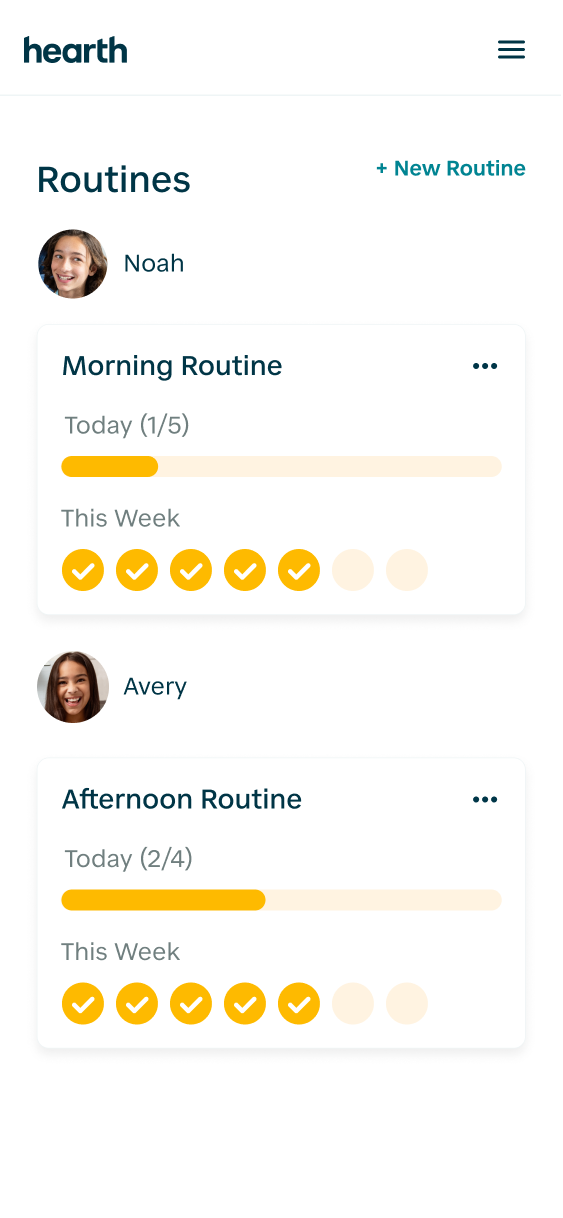
- Create Custom Rewards for your Family From the mobile Companion App, you can create custom rewards that fit your family - whether it’s a movie night, extra screen time, or a special treat. Then, assign Star values to any to-dos and routine steps like homework, chores, or bedtime. As your family completes their chores and builds long lasting habits, they’ll earn stars that can be redeemed for the rewards they love. Learn More.
- Let Hearth Helper add new events, lists, and meals for you. Quickly send details for upcoming events, new lists, or meals for the week to Hearth Helper from the mobile Companion app. You can even send Hearth Helper a picture of a school/extracurricular calendar, a camp supply list, or your existing whiteboard. Hearth Helper will quickly surface your request for your review and approval to add to your Hearth Display. Learn more about our tips for getting the most out of Hearth Helper HERE.
- Upload a Wallpaper and Activate Privacy Mode. Upload a Privacy Mode wallpaper for your Hearth Display through the Hearth Companion App’s “Display Settings” menu. Once uploaded, you can activate Privacy Mode by tapping on the gear icon located at the top-right-hand side of your Hearth Display, or set a timer for when Privacy Mode You can also set your screen to time out to Privacy Mode should automatically update. For more information about accepted image formats for your wallpaper, visit our Privacy Mode FAQ.
- Configure Hearth Display’s Sleep Mode Schedule Schedule your Hearth Display’s desired sleep times by going to the “Display Settings” tab on your Hearth Display. Your Display will go to sleep every day at the set "Start" time, and turn back on for the day at the scheduled "End" time. You can find a little more about Sleep Mode here.
Still have questions on how to get the most out of your Hearth Display? Reach out to us using the linked form HERE.