Q: How do I change the order of my family's profiles?
You can reorder your family’s profiles from the Hearth Companion App. It's important to note that once reordered, this updates the order in which your family’s profiles appear across the Hearth Companion App as well as your Hearth Display.
- To reorder your family’s profiles, navigate to the “Manage Family” page on the Hearth Companion App.
- Tap on the small reordering icon on the top right.
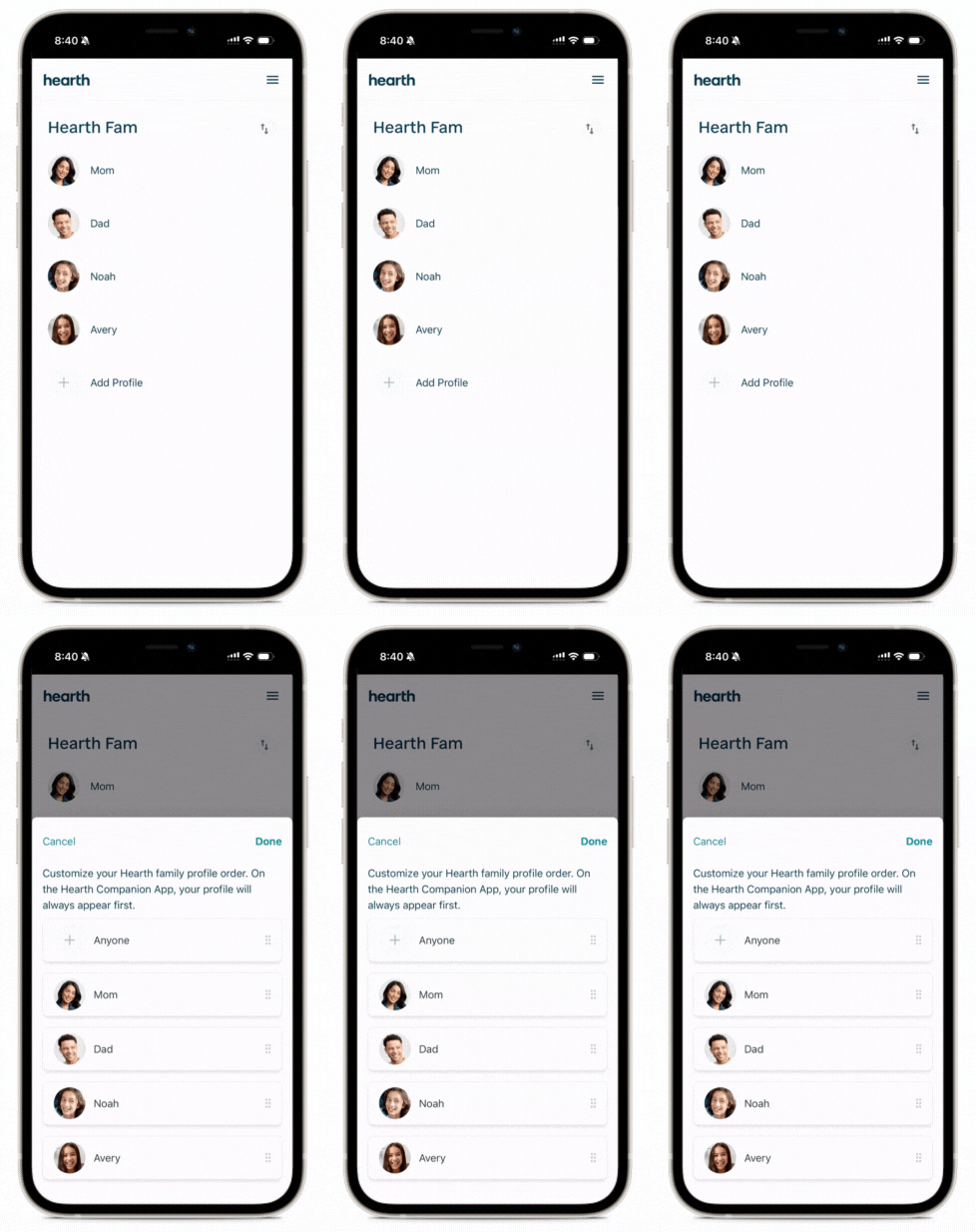
- From here, drag and drop your family’s profiles into your desired order.
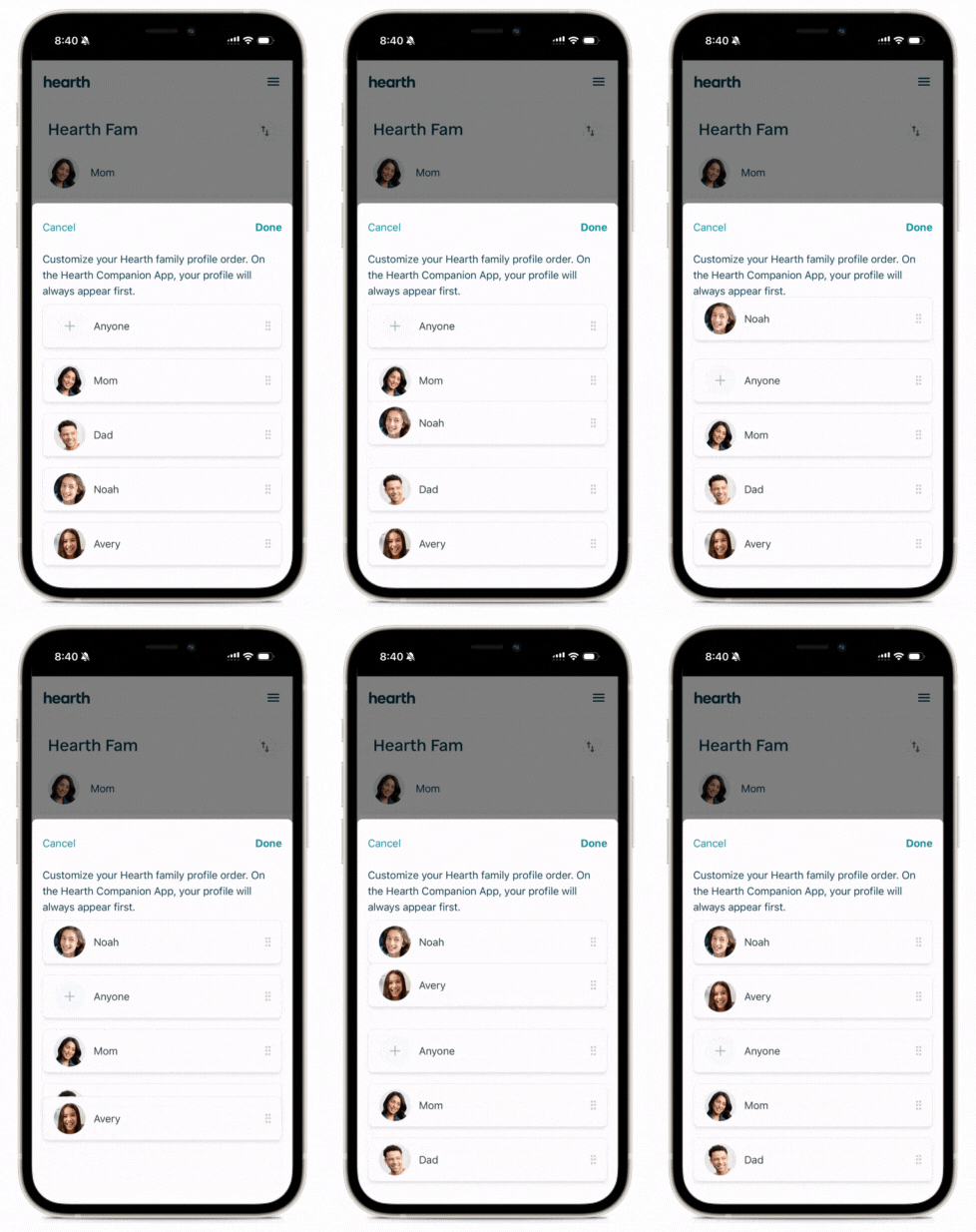
- Once you have set your desired profile order, tap “Done”.
On Your Hearth Display
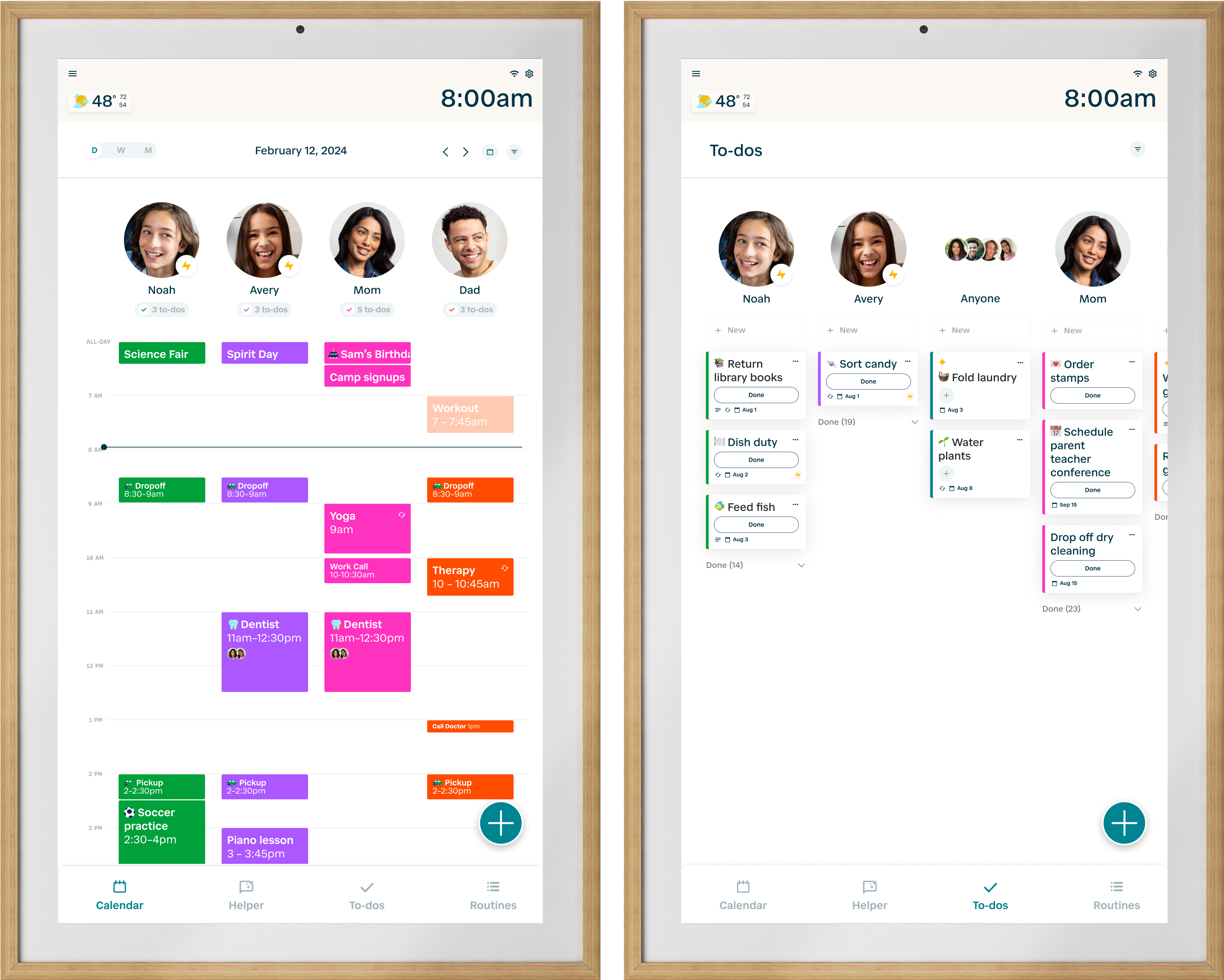
Once you’ve saved your new profile order, you’ll need to refresh your Hearth Display by pulling down from the top of your Display. On your Hearth Display’s Calendar, To-Dos, and Routines pages, profiles will appear in the new order that you have saved. On the To-Dos page, the “Anyone” column will also be included in this new custom order.
When assigning profiles to an event, to-do, or routine, the profile assignee options will also appear in your new custom profile order, along with anywhere else your family’s profiles appear altogether.
On Your Hearth Companion App
Your profile will always appear first on the Companion App, followed by your new custom profile order – allowing you to continue managing your own events, to-dos, and routines with ease.