Q: How do I obtain my Outlook Calendar’s URL to connect to Hearth?
Your Outlook Calendar URL can be found on the Outlook website outlook.live.com/calendar and is unable to be obtained through the mobile application.
- From your desktop/laptop, head to outlook.live.com/calendar & Sign in.
- On the right-hand side of the screen, select the gear icon to access your Outlook settings.
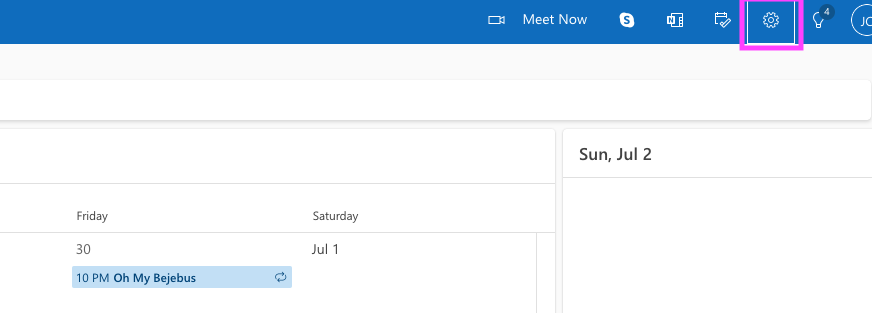
- Click on “View all Outlook settings”

- Next, select “Calendar”, and then “Shared calendars”.
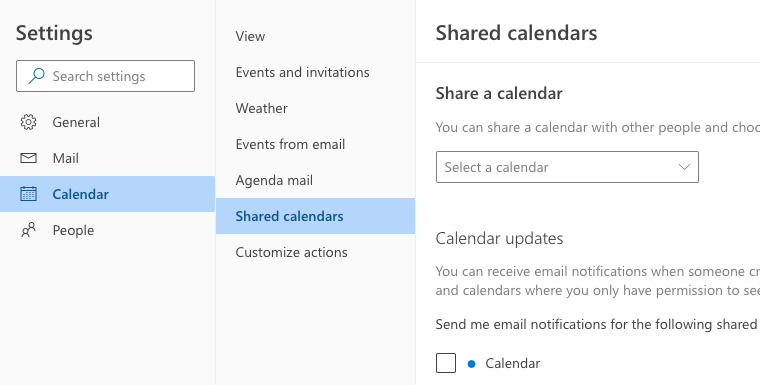
- From here, under Publish a calendar, choose the calendar you wish to add to Hearth, then in the second dropdown, click on “Can view all details”.
-
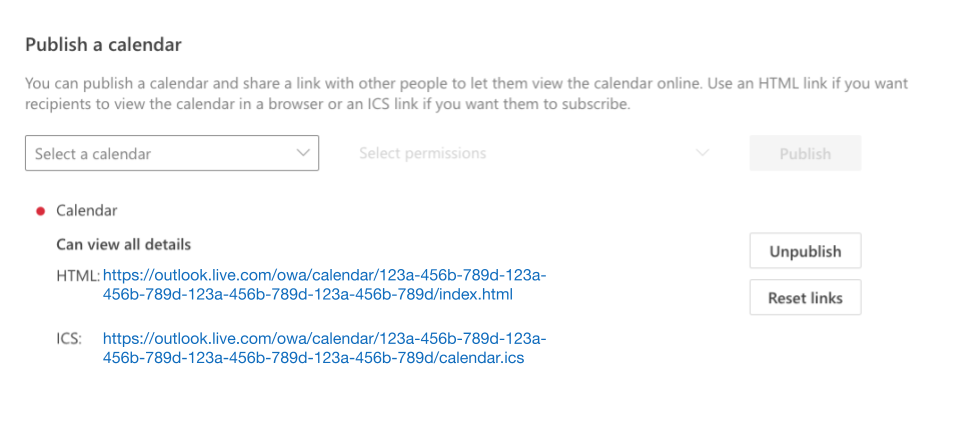
Next, click on“Publish”. From here, two separate links will appear. Click on the second (bottom) link found beside ICS.
-
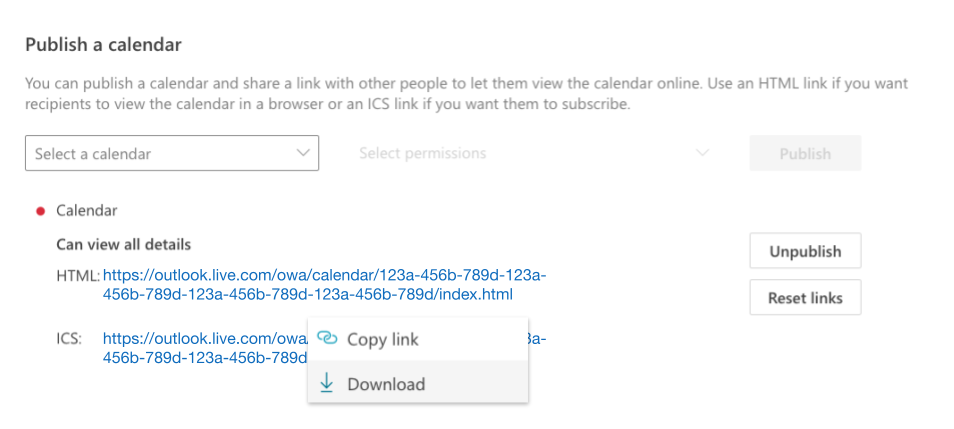
Once you have clicked on the second link, select “Copy Link".
-
Once the URL has been copied, open the Hearth Companion app, and select the "Manage Calendars" page from the menu.
-
From the "Manage Calendars" page, select "Connect Calendars" at the top of the screen.
-
From here, select Outlook Calendar.
-
Finally, paste the URL copied from Outlook, enter your desired calendar name, and select "Save".
With Outlook, some event changes may take up to 4 to 8 hours to sync and reflect on your Hearth calendar. Rest assured, any changes made to your events will appear on your Hearth calendar for your reference!